Waterford Early Learning: Annual Site Reset
This article is designed to guide you through the Annual Site Reset page as a single, comprehensive annual reset process used to transition your district into the new school year. Before taking any action, it is critical to review and confirm your program start and end dates, as these dates directly determine how your historical reports are preserved. Once dates are confirmed, you may choose to complete all reset actions or only the specific ones you need, such as removing associations or resetting placement. Please note that any actions taken on this screen will apply the current program dates to your historical reporting, making date accuracy essential to ensure your data is recorded and carried forward correctly.
Program Date
The option to manually update program start and end dates is still available in this section; however, it is intended only for one‑off adjustments, such as setting dates for a summer program without affecting the full school‑year calendar. For full school‑year transitions, administrators should use the Annual Site Reset workflow to ensure all data is reset and archived correctly for the upcoming year.
Before running any Annual Site Reset actions, administrators must review and confirm the Program Start and End Dates. These dates determine how historical reports are preserved, and any actions taken on this page will apply the current program dates to reporting.
To adjust program dates for all students in a district:
- Select the Organizations tab.
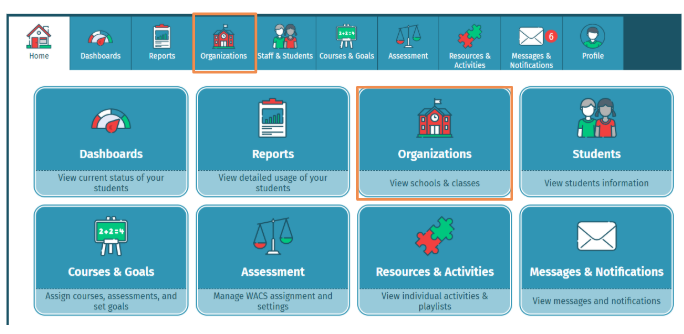
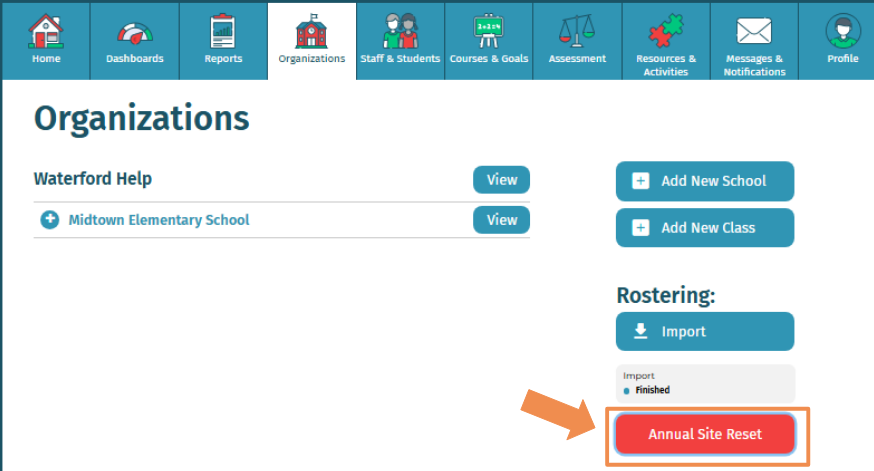
- Select Annual Site Reset.
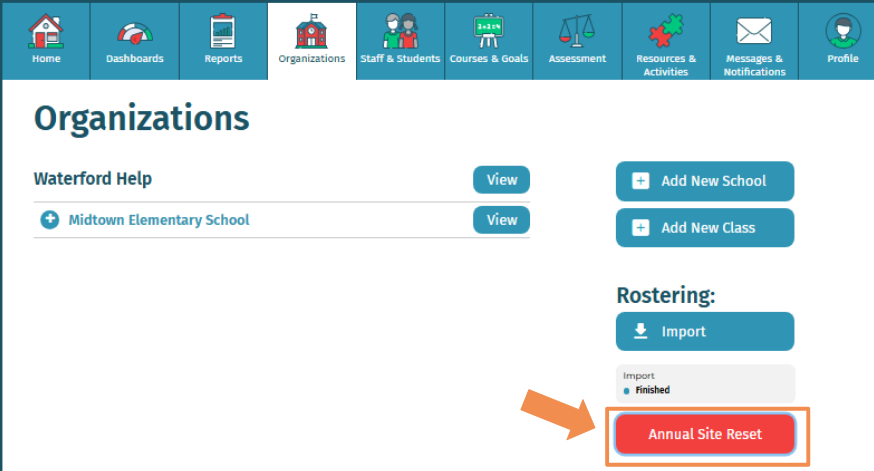
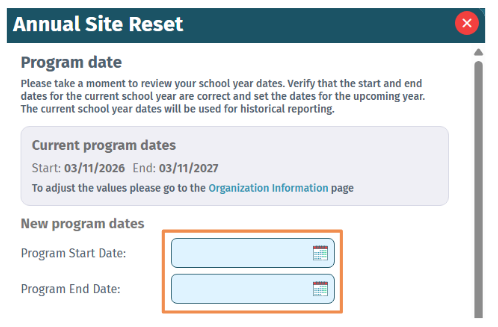
- Adjust Program Start and End Dates.
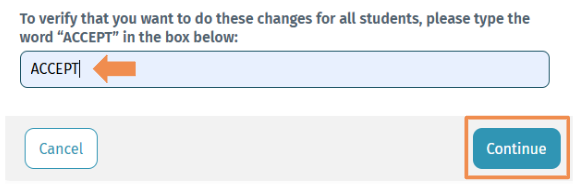
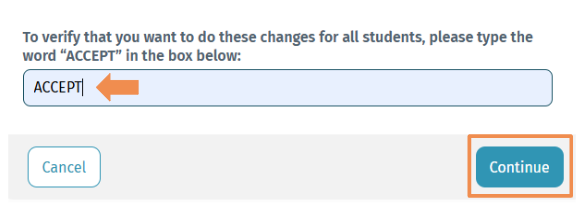
- To confirm changes, type in ”ACCEPT” and select Continue.
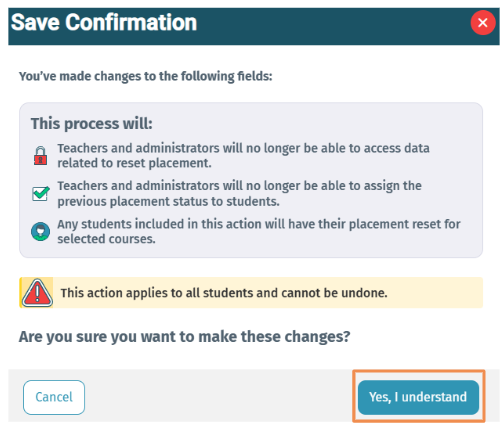
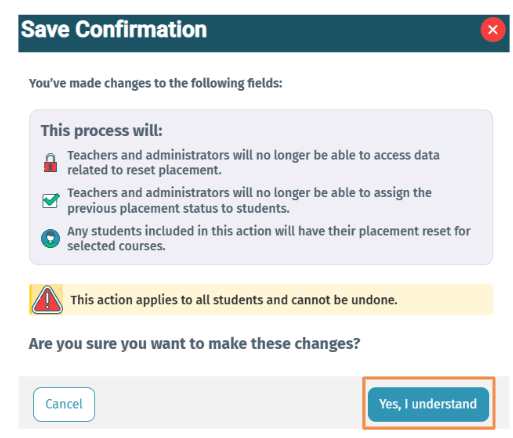
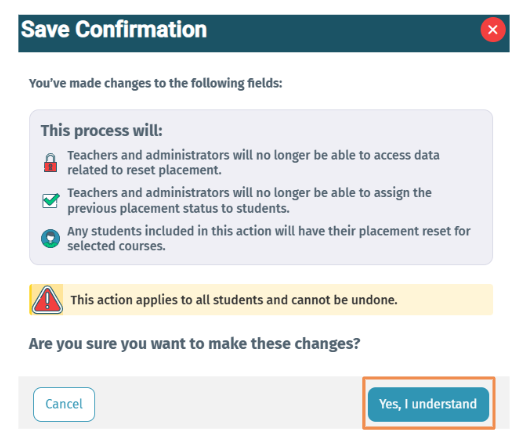
- Review changes and select Yes, I understand.
Remove Associations
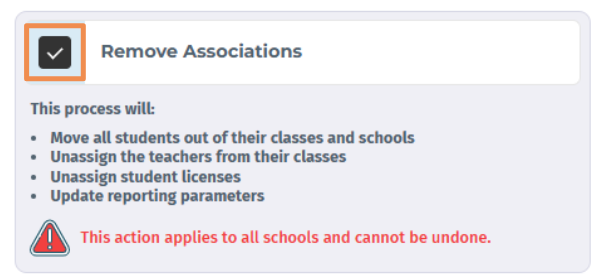
The Remove Associations tool disconnects class and student associations, reflecting new teacher and student assignments, and removes licenses for students from the previous year. This ensures an accurate license count for the upcoming year.
It does not delete learning data, dashboards, reports, or SmartStart data, nor does it reset placement exams (use the provided link to reset exams).
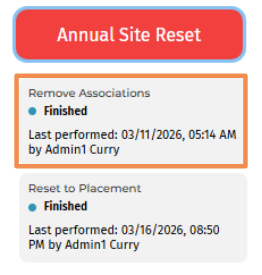
This is intended for annual site reset cleanup and should only be used once annually to prepare for the next school year. You can check the last successful use of this tool in the Organizations tab.
To remove all associations:
- Select the Organizations tab.
- Select Annual Site Reset.
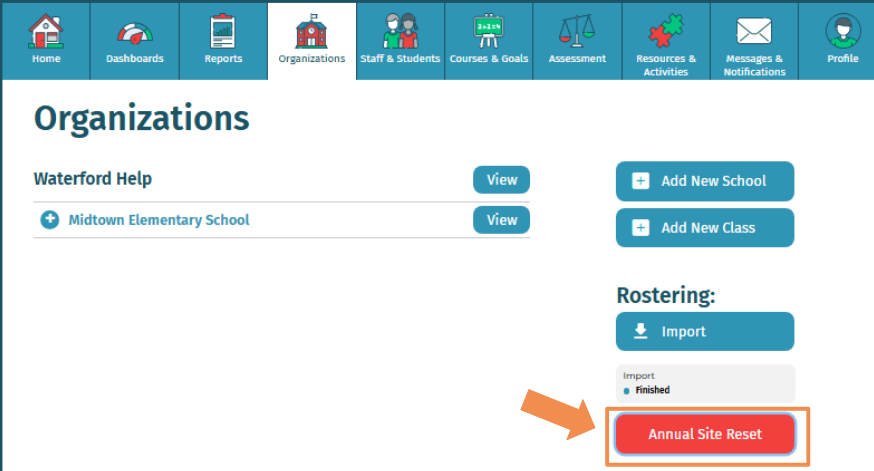
- Select the checkbox for Remove Associations.
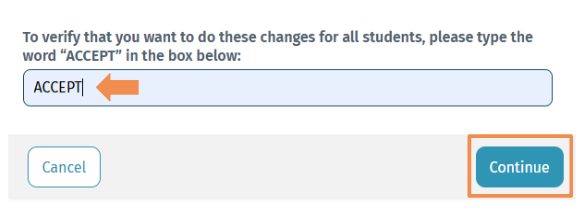
- To confirm changes, type in ”ACCEPT” and select Continue.
- Review changes and select Yes, I understand.
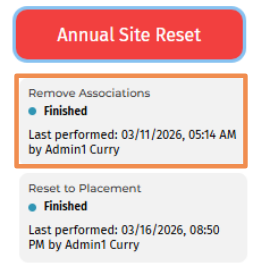
- You will see Finished Removed Associations under Annual Site Reset under the Organization tab.
Once initiated, the process cannot be undone. You can track progress in the Organizations tab. After completion, you can add or import new school and class data for the upcoming year.
Reset to Placement
District administrators can reset placement exams for their full school district. Resetting placement exams will unassign students from their current location in the Waterford curriculum.
Taking a placement test does not delete any learning or usage data collected throughout the year, including SmartStart data.
However, the placement test resets the student’s progress within the program sequence. Because of this reset, dashboards and reports that display program progress may change to reflect the student’s new placement. Usage data (such as time spent and activity history) remains intact.
Course and teacher assignments are not removed when a placement test is taken. To remove those, you must manually remove the associated assignments.
To reset placement exams for all students in a district:
- Select the Organizations tab.
- Select Annual Site Reset.
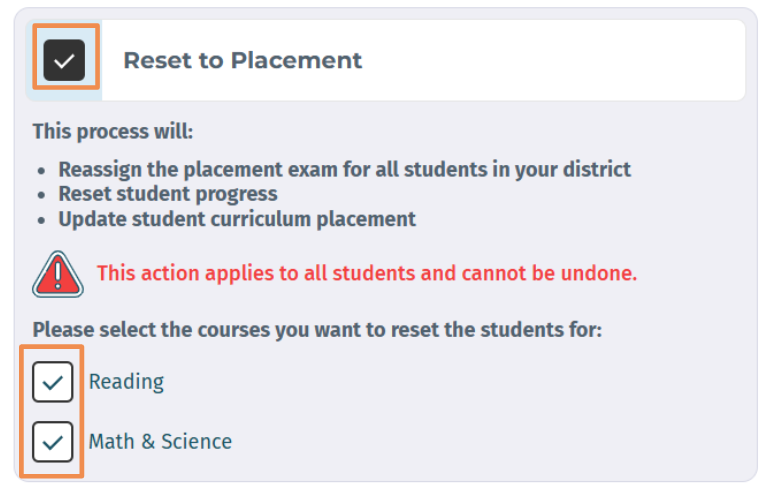
- Select the Reset to Placement checkbox, then select the checkbox(s) for the course(s) you want to reset: Reading, Math & Science, or both.
- To confirm changes, type in ”ACCEPT” and select Continue.
- Review changes and select Yes, I understand.
- You will see Finished Reset to Placement under Annual Site Reset under the Organization tab.
Last Updated: 08/05/26