Waterford Early Learning: Override Goals Setting for District Administrators
Goals can be set at multiple levels: including district, school, class, and student. When the override setting is used, any custom goals set at lower levels will be replaced with the newly created goals if chosen. District administrators must first enable the goal‑override feature before it can be used.
Enable Override Goals Setting
To enable override goals setting:
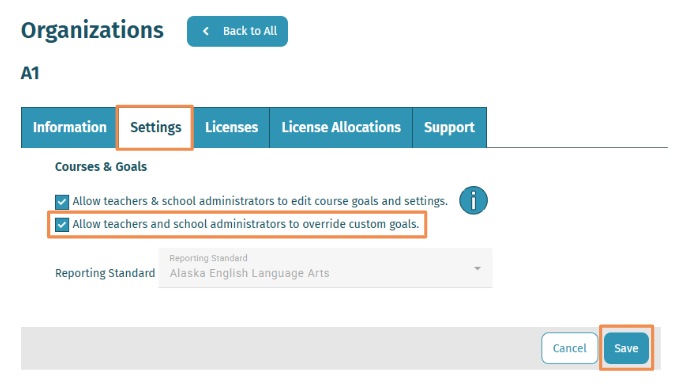
- Log in to your account and visit the Organizations tab.

- Select Settings, then select the checkbox “Allow teachers and school administrators to override custom goals”, and select Save.
Overview of How the Override Goals Feature Works
To help illustrate how this works at the district level, consider the following example: if Student 1 is in Class A and the class goal is set to 15 minutes per day, 4 days per week, while Student 1 has a custom goal of 20 minutes per day, 5 days per week, and the teacher updates the class goal to 18 minutes per day, 4 days per week, the override setting determines what happens next. If the teacher chooses to override custom goals, Student 1’s goal will update to match the new class goal of 18 minutes per day, 4 days per week. If the teacher chooses not to override, Student 1 will keep their custom goal of 20 minutes per day, 5 days per week.
Here’s an overview of how the override goals feature works across for district, schools, classes, or students:
- Log in to your account and visit the Course & Goals tab.

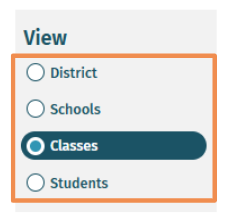
- Under View, select the district, schools, classes, or students you would like to adjust.
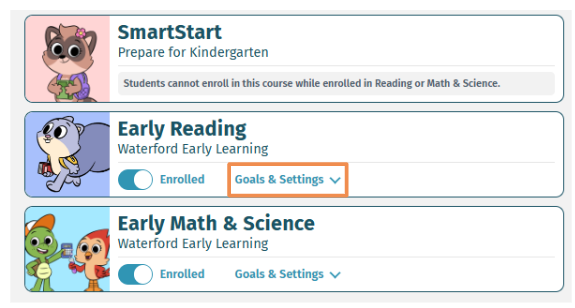
- Select Goals & Settings.
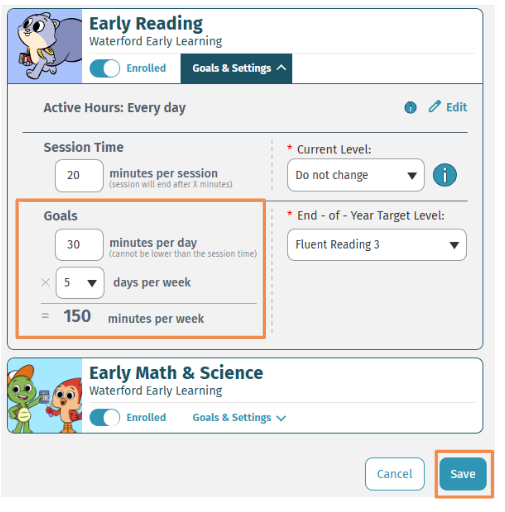
- Adjust Goals and select Save.
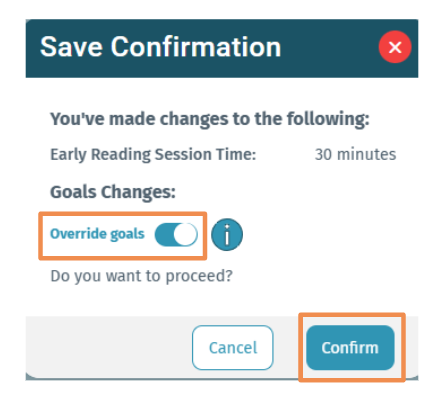
- To override an existing goal, simply enable the toggle and confirm.
Last Updated: 02/10/26