Waterford Early Learning: Playlist Reports for Teachers or Administrators
Teachers and administrators can easily view completion and score data for playlists assigned to individual students or classes. Reports can be filtered by date range, showing playlists that were either assigned or completed within the selected timeframe. Only completed playlists display a score, while expired playlists are those with a set completion date that students did not meet. Assigned playlists indicate those that have been given to students but have not yet been started. Updated reporting tools include flexible sorting and filtering options, along with enhanced export features for quick and efficient analysis.
Individual Student Playlists Reports
To select and view an Individual Student Playlists Report in Waterford Early Learning:
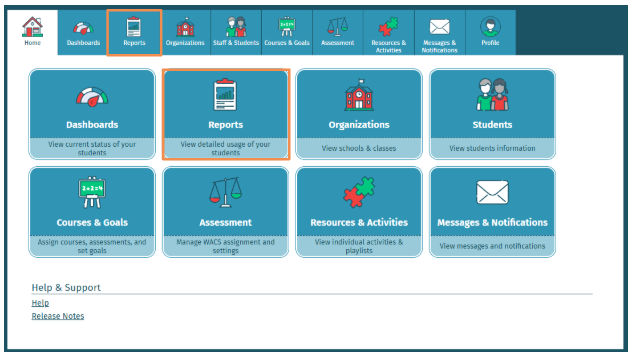
- Log in to Waterford Early Learning and visit the Reports tab.
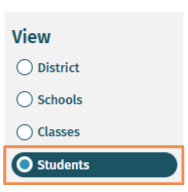
- To access an individual student's Playlists Report, you must first select Students under View.
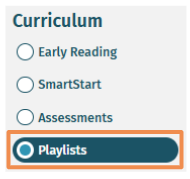
- Select Playlists under Curriculum.
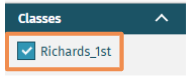
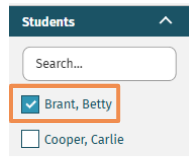
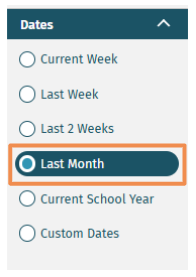
- Under Filters, you must select from Classes, Students, and Dates filter options before the Playlists Report will open.
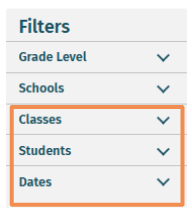
- Classes
- Students
- Dates
- Select Open on Playlists Report.
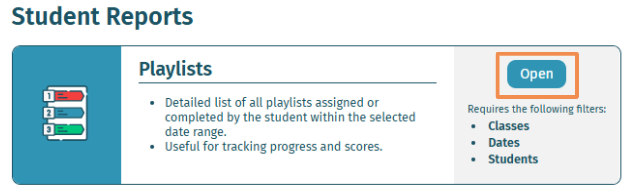
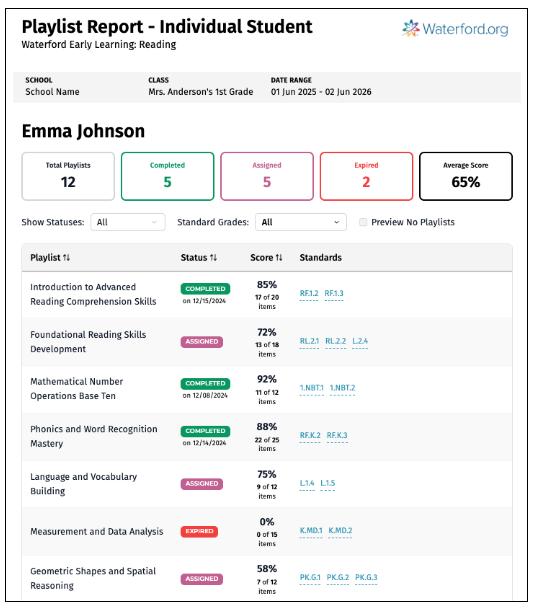
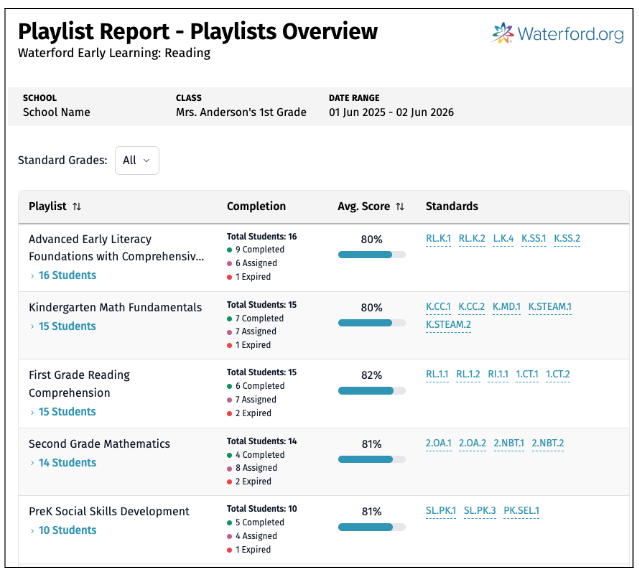
- The Playlists Report shows the total number of playlists, the number of completed, assigned, and expired playlists, and the average score.
- The Standards for Reading are correlated with State Standards.
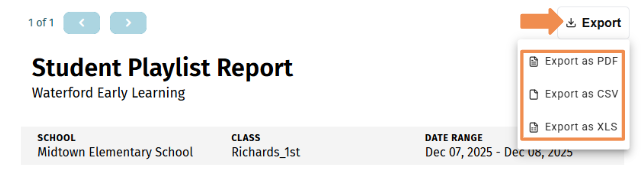
- To export the report, select Export.
- PDF exports remain similar to the existing report format, while CSV and XLS exports now deliver properly formatted tables for quick sorting and analysis.
Class Playlists Report
To select and view a Class Playlists Report in Waterford Early Learning:
- Log in to Waterford Early Learning and visit the Reports tab.
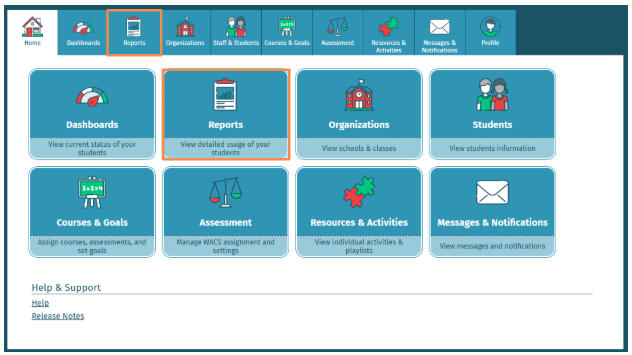
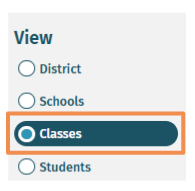
- To access a Class Playlists Report, you must first select Classes under View.
- Select Playlists under Curriculum.
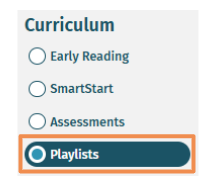
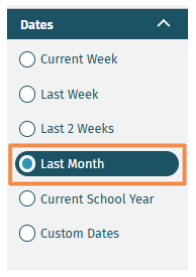
- Under Filters, you must select from the Classes and Dates filter options before the Playlists Report will open.
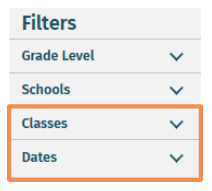
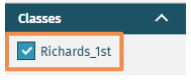
- Classes
- Dates
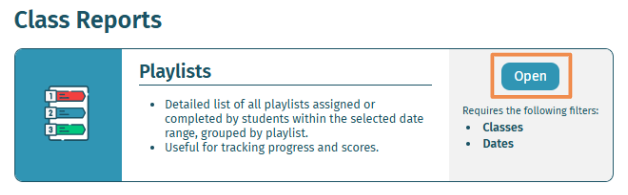
- Select Open on Playlists Report.
- The Class Playlists Report will open as shown below.
- The Standards for Reading are correlated with State Standards.
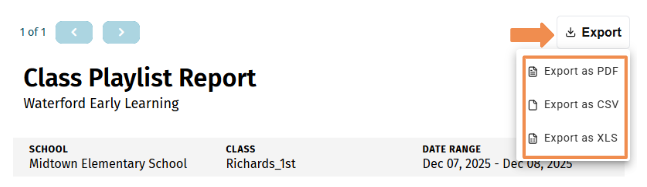
- To export the report, select Export.
- PDF exports remain similar to the existing report format, while CSV and XLS exports now deliver properly formatted tables for quick sorting and analysis.
Last Updated: 03/04/26