Waterford Early Learning: Family Codes for Teachers
Teachers can access and give Waterford Family Codes to families so they can set up their own individual accounts. Teachers can also create their own Waterford Family account and add their students individually to track their progress.
If you are a teacher and want to create your own Waterford Family account, visit the registration instructions for families to create your own account and link your students to it.
Managing Waterford Family Codes for Waterford Early Learning
To view a Family code for your student:
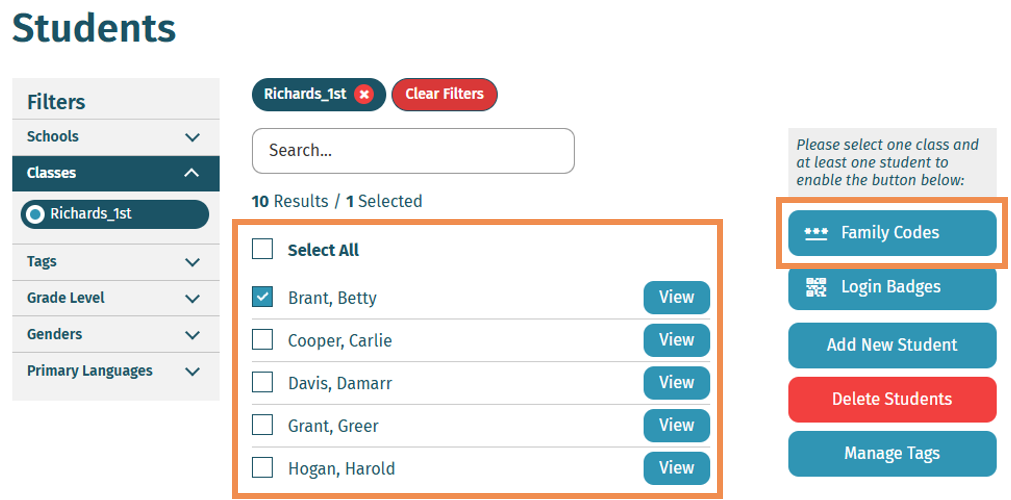
- Log in to the Teacher Portal at teacher.waterford.org and visit the Students tab.

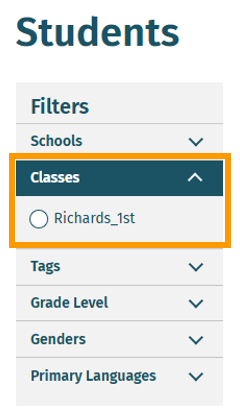
- Select or filter by your class name.
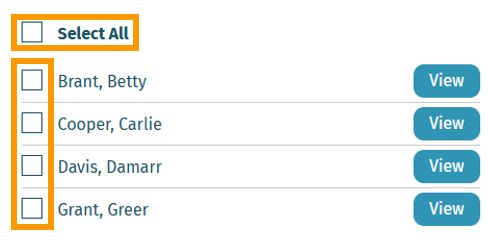
- Check the box next to the name of the student whose Family code you would like to view.
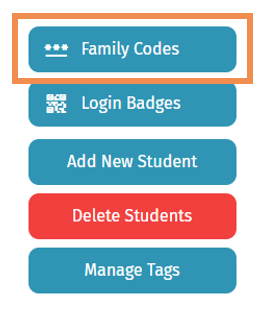
- Select Family Codes. This will open a pop-up window with two options: View Family Codes and Revoke Family Codes.
- Select View Family Codes.
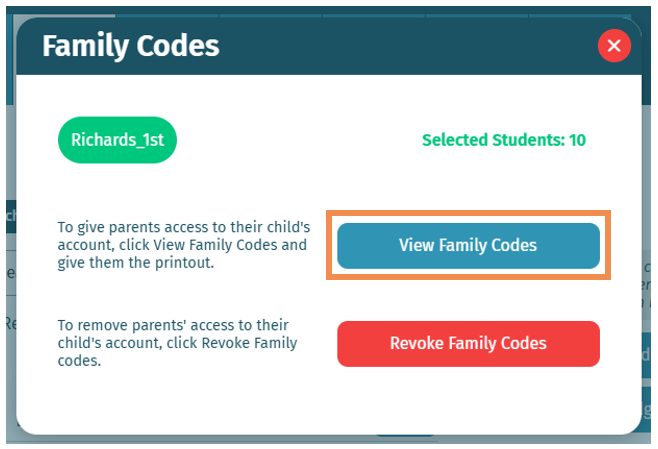
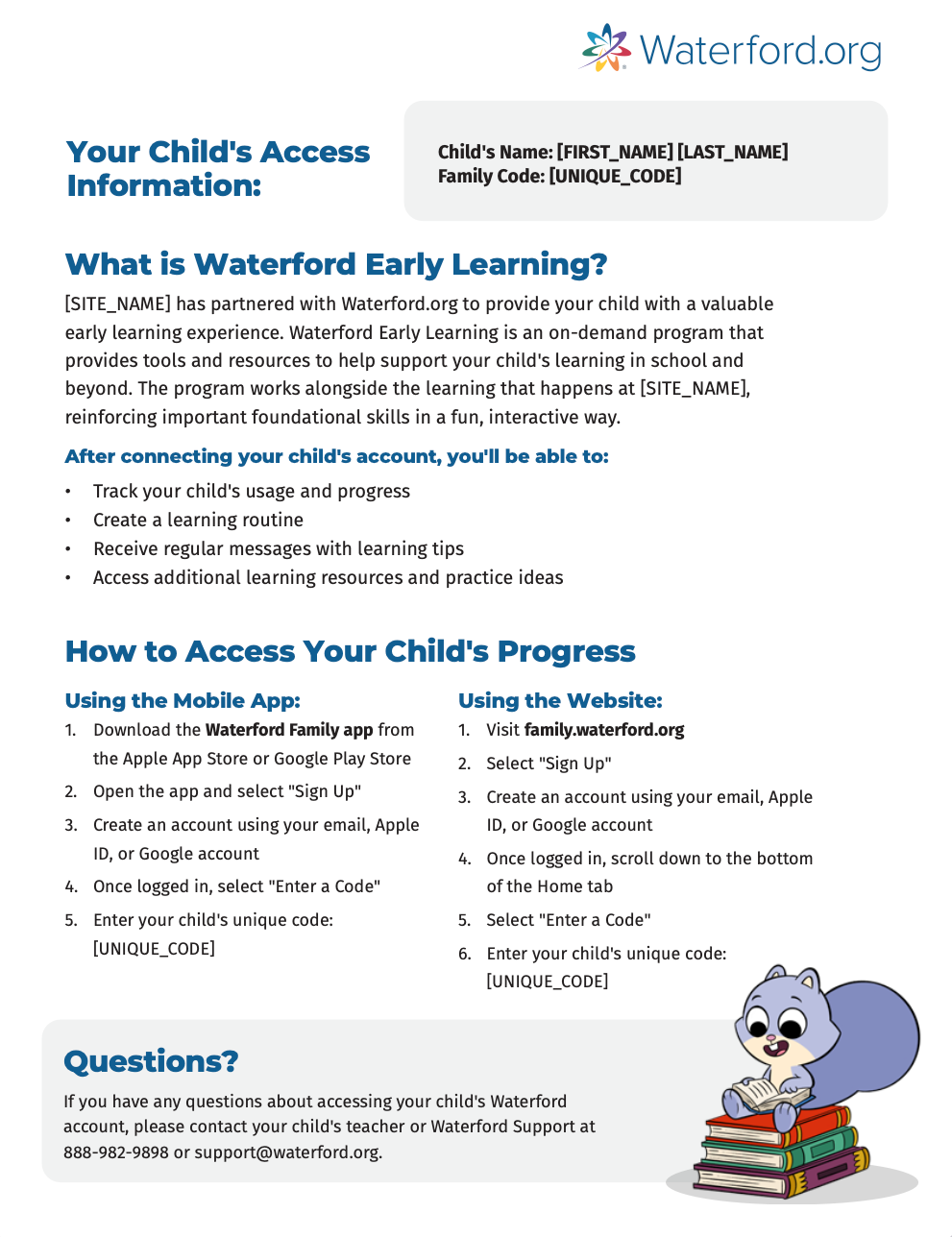
This will open a PDF on your computer with the selected student’s Family Code. You can then print and share this PDF with the student’s family.
Revoking Waterford Family Codes
When you revoke a Family code, the family associated with it can no longer access a student’s information in Waterford Family.
To revoke a Family code for a student:
- Log in to the Teacher Portal and visit the Students tab.

- Check the box next to the name of the student whose Family code you would like to revoke.
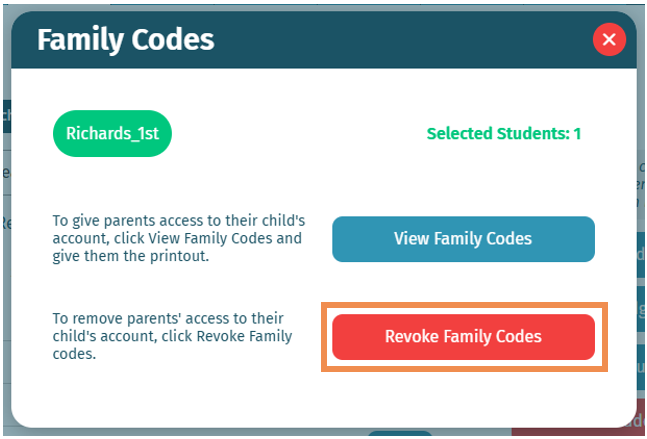
- Choose Family Codes. This will open a pop-up window with two options: View Family Codes and Revoke Family Codes.
- Select Revoke Family Codes.
- A pop-up window will ask you to confirm your choice. Check Yes, Revoke Codes.
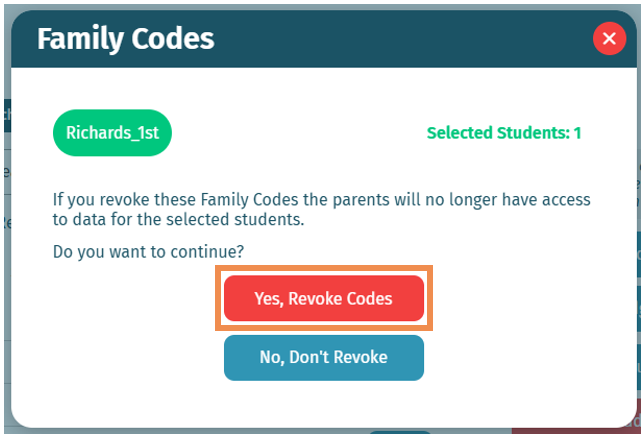
This will remove the family’s access to the student’s Waterford Family information.
Last Updated: 09/02/26