Waterford Family: Logging in with QR Code
Caregivers can now generate a unique QR Code for each child, making it easy for them to log in and begin their learning sessions on their own. You can find the code by signing into your account either on the Waterford Family Browser or in the Waterford Family App.
Logging in with QR Code in the Browser
To view your child’s QR Code in a browser and start a session, follow the steps below.
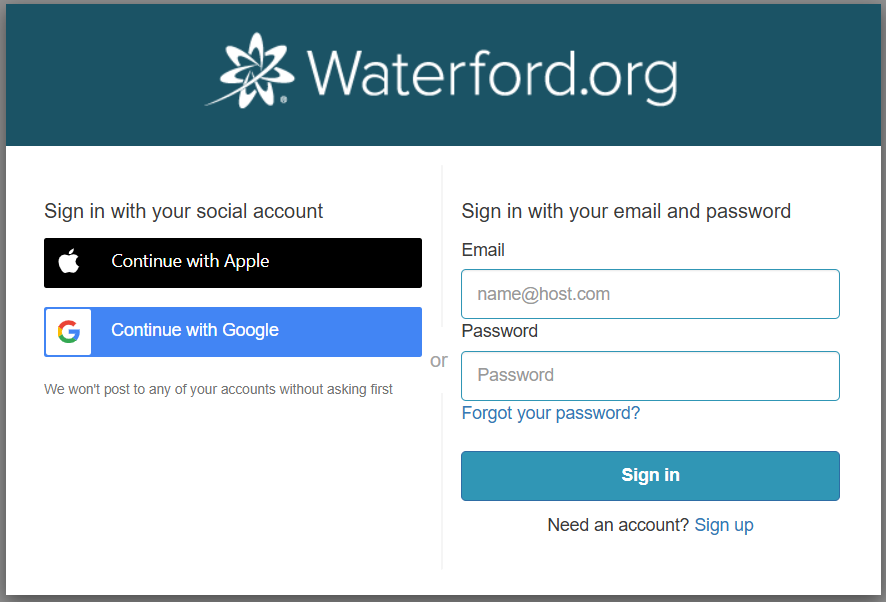
- Log in to your Waterford Family account at family.waterford.org.
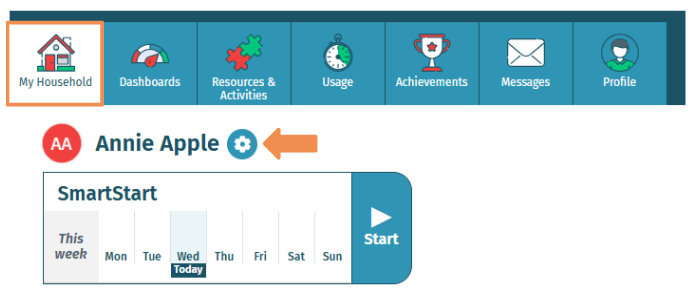
- On the My Household tab, click the settings gear icon next to your child’s name.
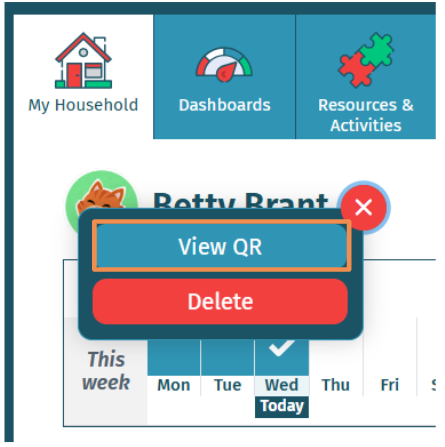
- Select View QR.
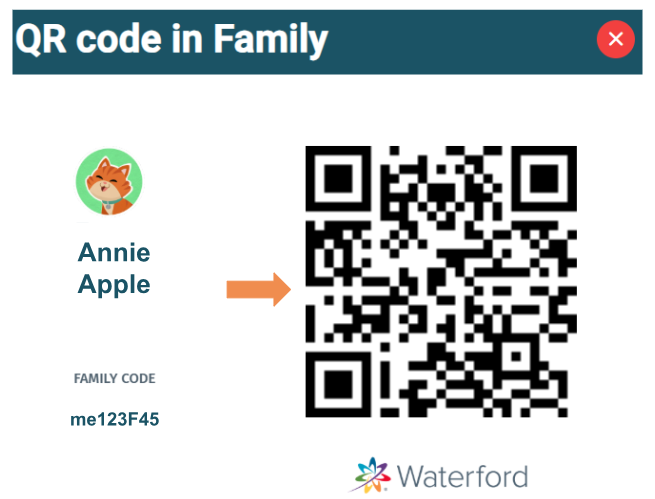
- QR Code is ready for use.
To use the QR code, families will need one device to display the code (like a phone or computer) and another to scan it (like a tablet with the WEL app). To make things easier, you can also take a screenshot of the QR code on your phone or print it out—this way, you won’t need both devices at the same time.
- From your child’s device, open the Waterford Early Learning app and select Scan QR Code.
- Click here for step-by-step instructions on downloading the WEL app.
- Ensure you are using a device compatible with Waterford.org System Requirements.
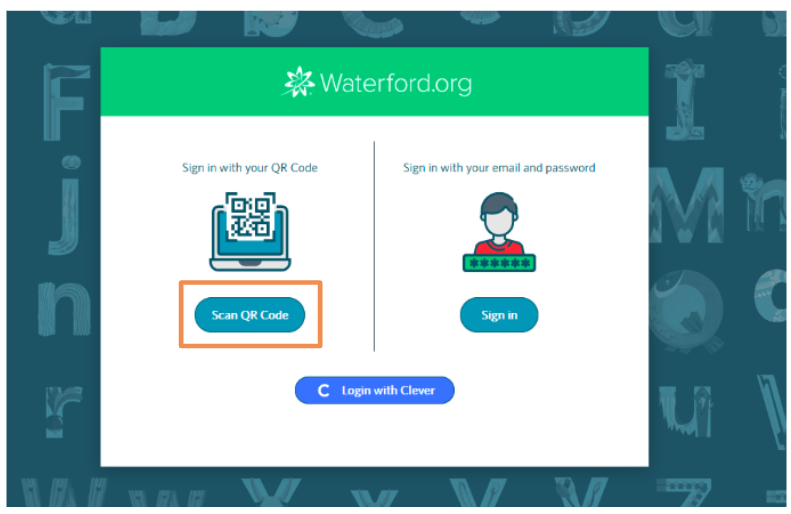
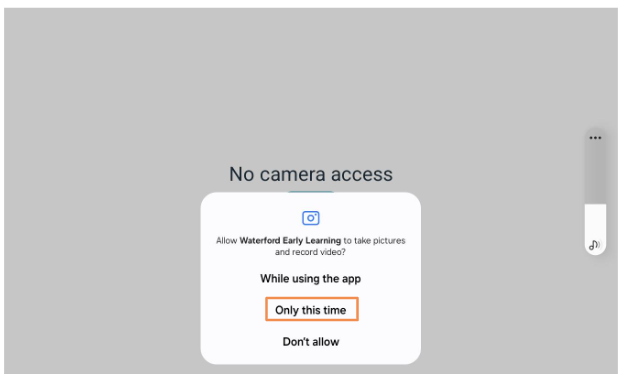
- Tap Allow Only this time to give my.waterford.org permission to open your child’s device’s camera.
- Hold the QR code (from step 5) up to your device’s camera to begin scanning.
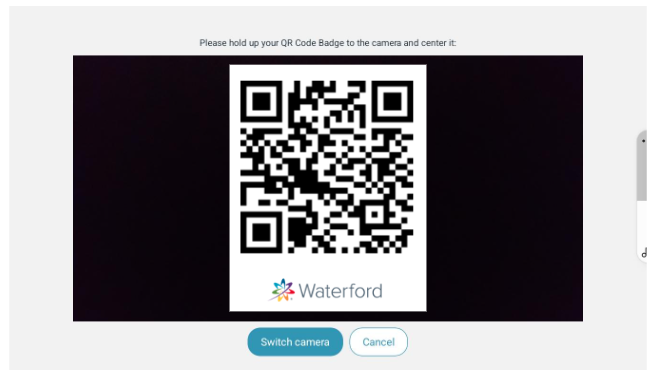
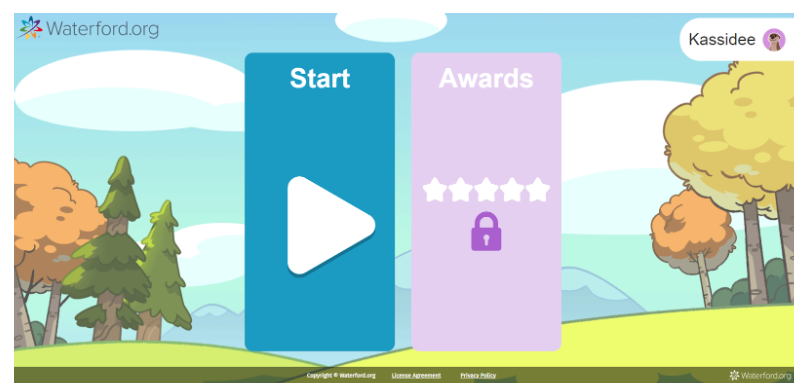
When the device recognizes the QR code, your child will be redirected to their Waterford homepage. Have them click Start.
Logging in with QR Code in the App
To view your child’s QR Code in the Family app and then start a session, follow the steps below.
- Log in to the Waterford Family App.
- If you have not registered an account, click here.
- Select the gear settings icon.
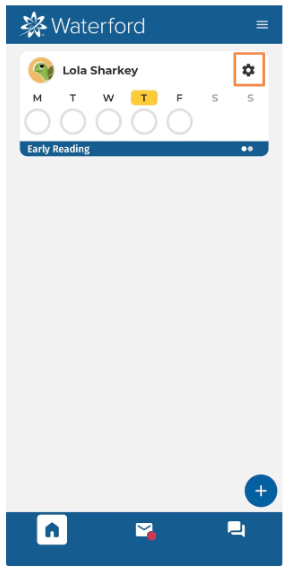
- Select View QR Code.
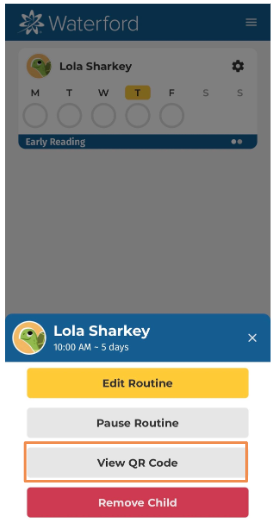
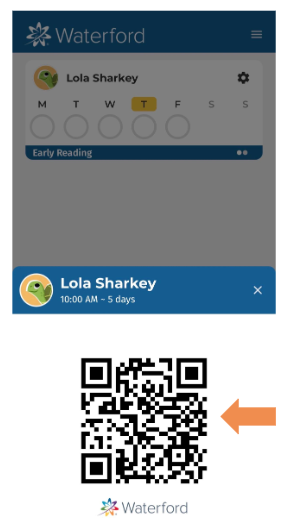
- QR Code is ready for use.
To use the QR code, families should hold the code up on their phone and scan it with another device (like a computer or tablet with the WEL app) to get started. To make things easier, you can also take a screenshot of the QR code on your phone; this way, you won’t need both devices at the same time.
- From your child’s device, open the Waterford Early Learning app and select Scan QR Code.
- Click here for step-by-step instructions on downloading the WEL app.
- Ensure you are using a device compatible with Waterford.org System Requirements.
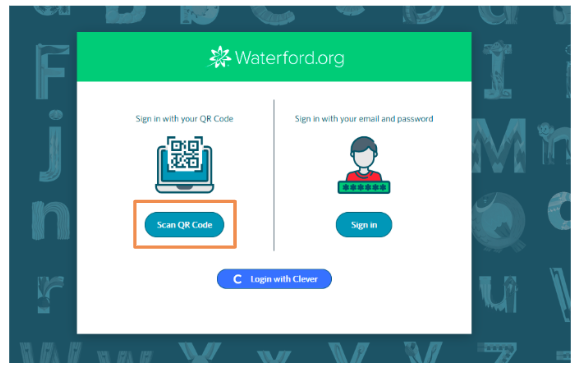
- Tap Allow Only this time to give my.waterford.org permission to open your child’s device’s camera.
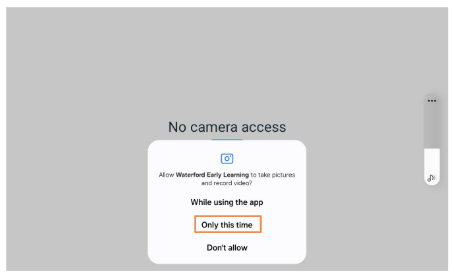
- Hold the QR Code (from step 5) up to your device’s camera to begin scanning.
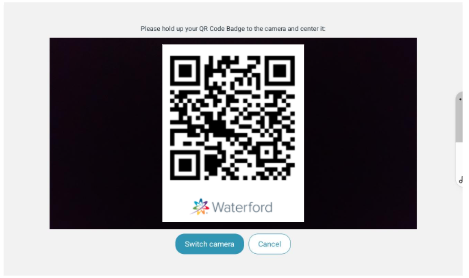
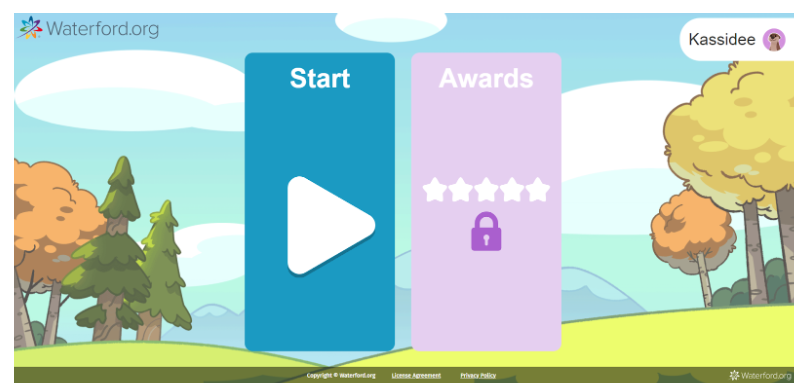
When the device recognizes the QR Code, your child will be redirected to their Waterford homepage. Have them click Start.
Last Updated: 12/11/25